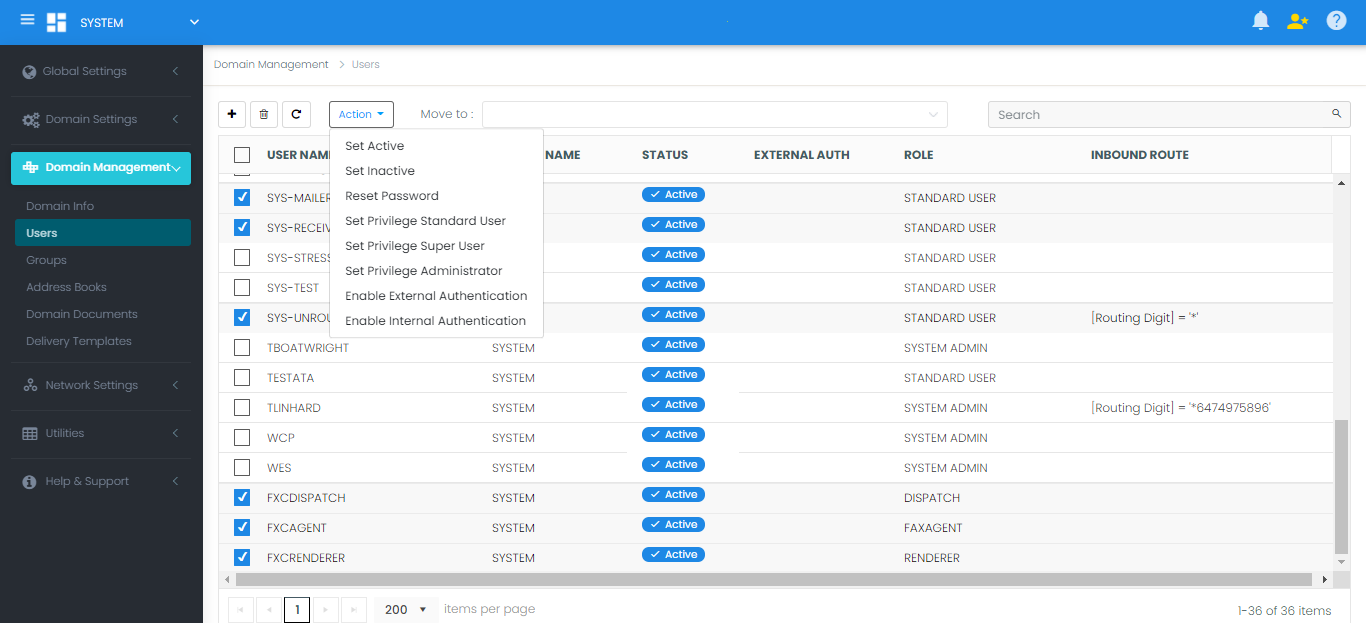
User Management
FaxCore provides three methods for user onboarding: manual creation, Microsoft Active Directory synchronization, and bulk file import. This section covers manual creation and ongoing account administration.
Manually Creating a User
- In the Admin Panel, navigate to Domain Management > Users.
- Click the + (New) button to display the Create New User dialog:
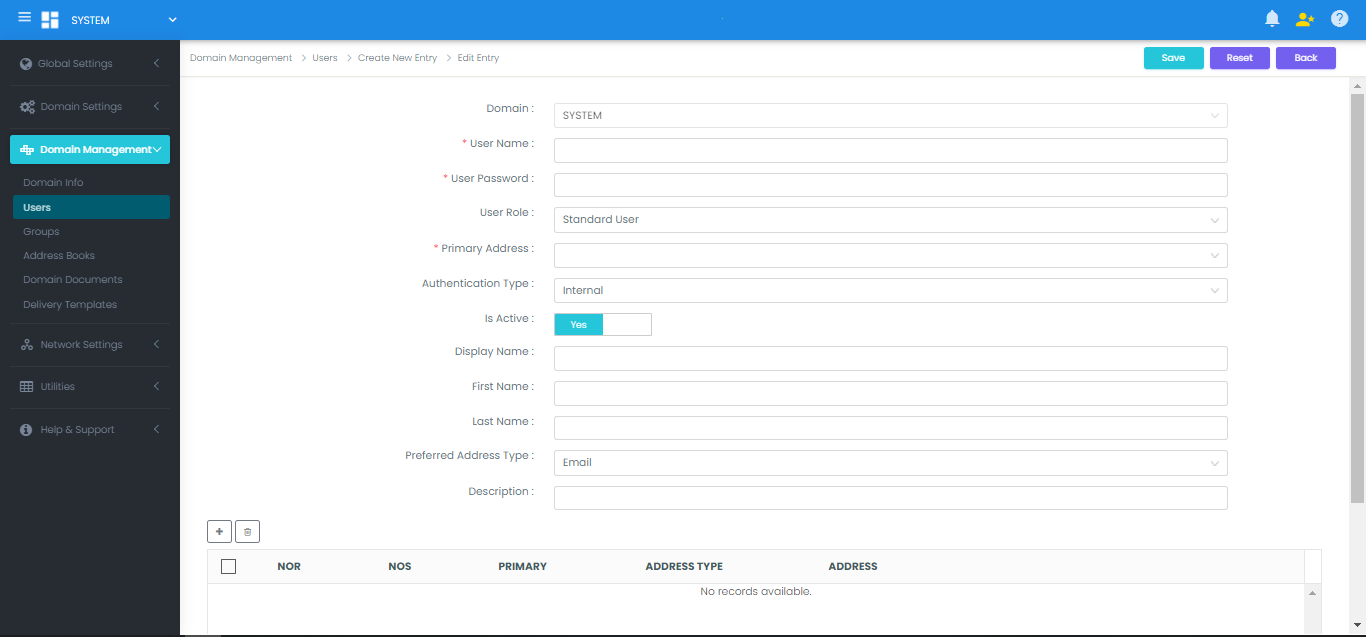
- Configure user profile fields:
- Domain: Target domain where the user resides.
- User Name: Unique system login ID (e.g.,
jdoe). - User Password: Initial password.
- User Role: Access level (see Roles table below).
- Primary Address: User's outbound delivery address.
- Authentication Type: Set to Internal for standard accounts, or External for accounts authenticated against Active Directory / LDAP.
- First Name / Last Name / Display Name: Personal identification details.
- Preferred Address Type: Primary delivery channel (Email, Fax, File, etc.).
- Click Save.
User Privilege Roles
| Role Level | Role Name | System Capabilities |
|---|---|---|
| 1 | System Admin | Global administrative access across the entire server, all domains, hardware settings, and queues. |
| 2 | Domain Admin | Administrative control restricted to the user's specific domain and its child domains. |
| 3 | Super User | Elevated user capable of viewing and managing messages within authorized groups/queues. |
| 4 | Standard User | Standard user restricted to their personal inbox, outbox, and private address book. |
Modifying Existing Users
Single User Editing
- Navigate to Domain Management > Users.
- Search for the account using the Search Users bar or domain filters.
- Click the username link:
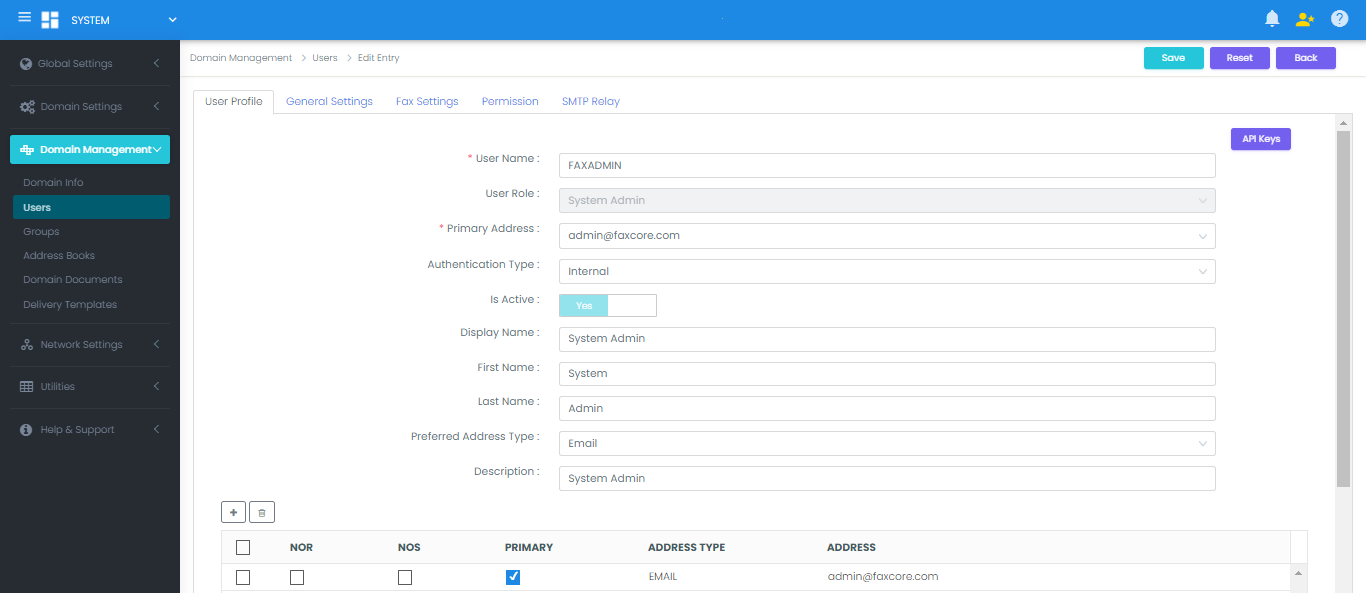
- Adjust settings, addresses, or permissions and click Save.
Batch Operations on Multiple Users
To modify multiple accounts concurrently:
- In Domain Management > Users, check the boxes next to the target users (or select the header checkbox to select all visible users):
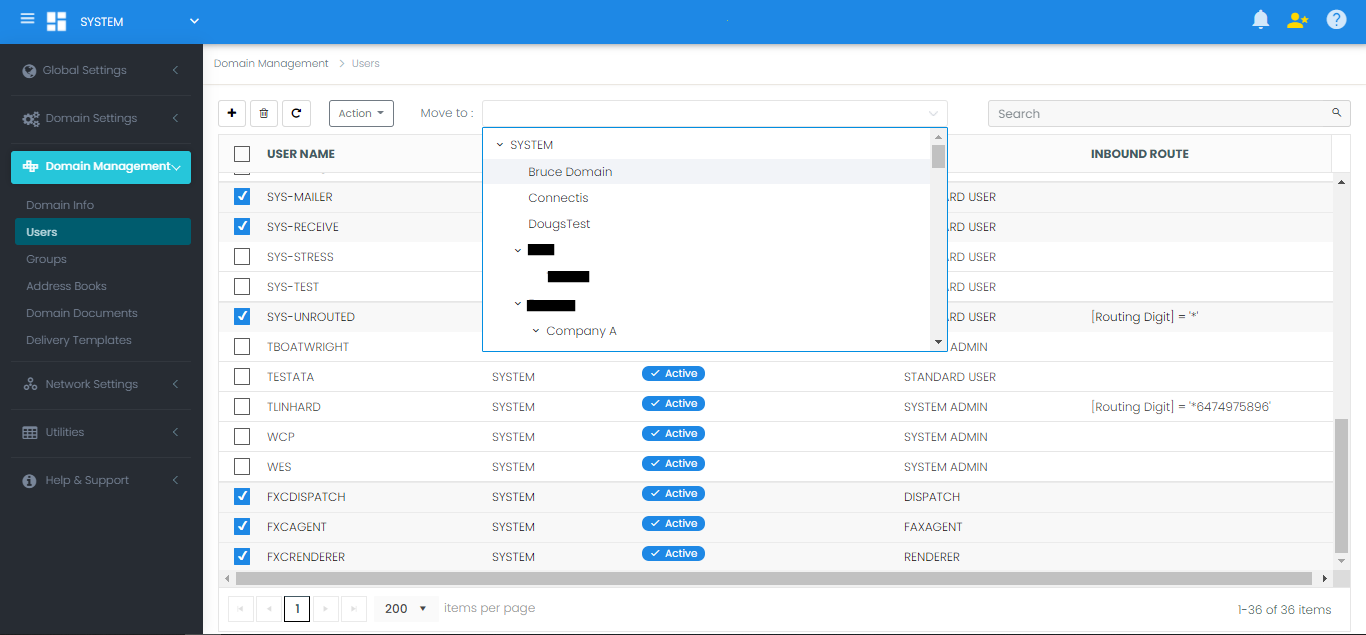
- Perform batch actions:
- Move Domain: Select the target domain from the Move to: dropdown.
- Action Dropdown: Select from available bulk operations:
- Set Active / Set Inactive
- Reset Password (Internal authentication accounts only)
- Set Privilege Level (Standard, Super User, Domain Admin)
- Enable / Disable External Authentication
- Enable / Disable Directory Synchronization